> For the complete documentation index, see [llms.txt](https://docs.deemos.dev/addon/llms.txt). Markdown versions of documentation pages are available by appending `.md` to page URLs; this page is available as [Markdown](https://docs.deemos.dev/addon/readme-maya.md).
# Rodin add-on for Maya
### Introduction
The Rodin add-on for Maya is a powerful integration tool that supports most of the functions available on [Rodin's webpage](https://hyper3d.ai), allowing users to access image-based generation capabilities directly within the Maya environment. It enables users to replace target images, adjust generation settings, utilize ControlNet with selected objects, and choose between automatic and manual generation modes—all while maintaining a seamless workflow between Maya and the Rodin web interface through the convenient floating window functionality.
### Overview
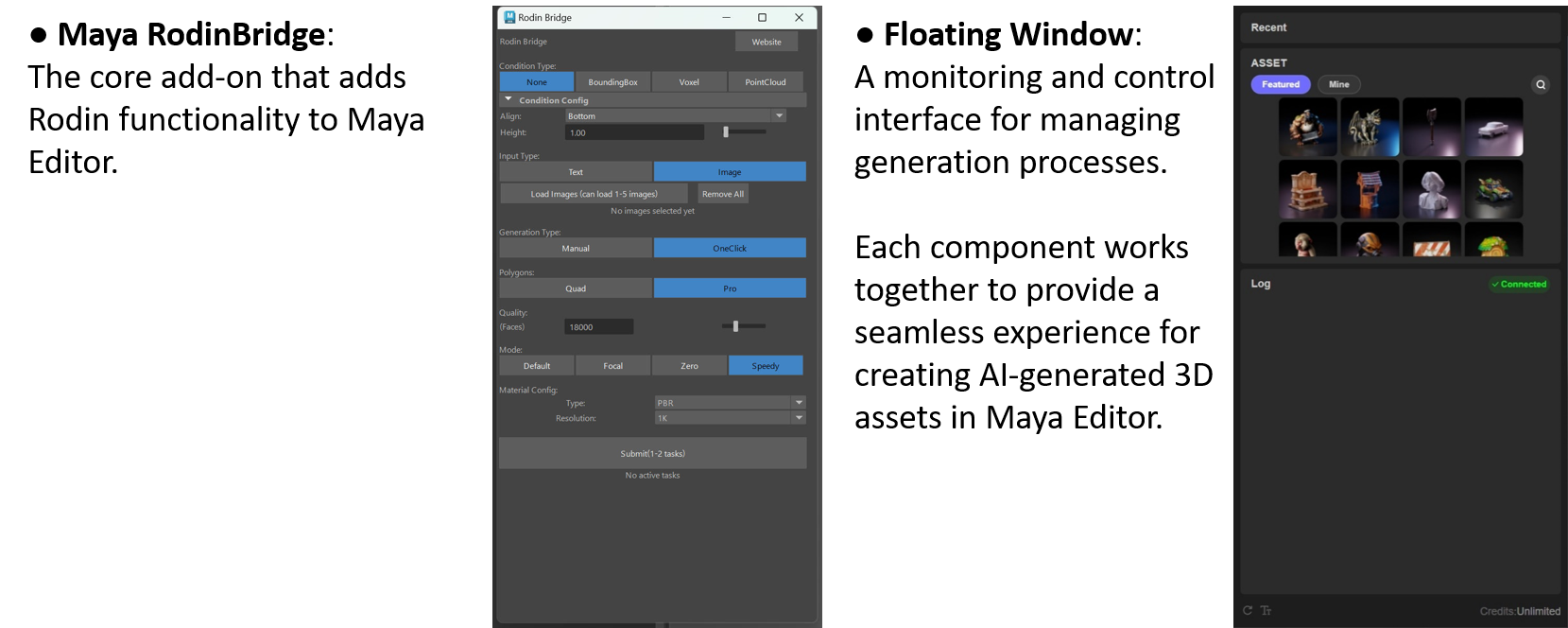
The Rodin Bridge for Maya integrates Rodin's powerful AI-based 3D generation capabilities directly into your Maya. This integration consists of two main components:
### Installation
**Requirements**
Maya 2022 - 2026.
**Step-by-step Instruction**
1. Unzip the .zip file to any where you like.
2. Launch Maya and navigate to 'Windows' -> 'Settings/Preferences' -> 'Plugin-in Manager'.
3. Click **Browse** at the bottom of the Plug-in Manager window, locate the **RodinBridge\_Maya** folder and select the 'Bridge.py' file and **Open**.
4. Enable **RodinBridge\_Maya** by clicking its Loaded and Auto load boxes.
### Basic Usage
The Rodin add-on integrates most Rodin's generation functions directly in MayaEngine. Operation requires interaction in both MayaEngine and the Rodin webpage.
**Single Image Generation**
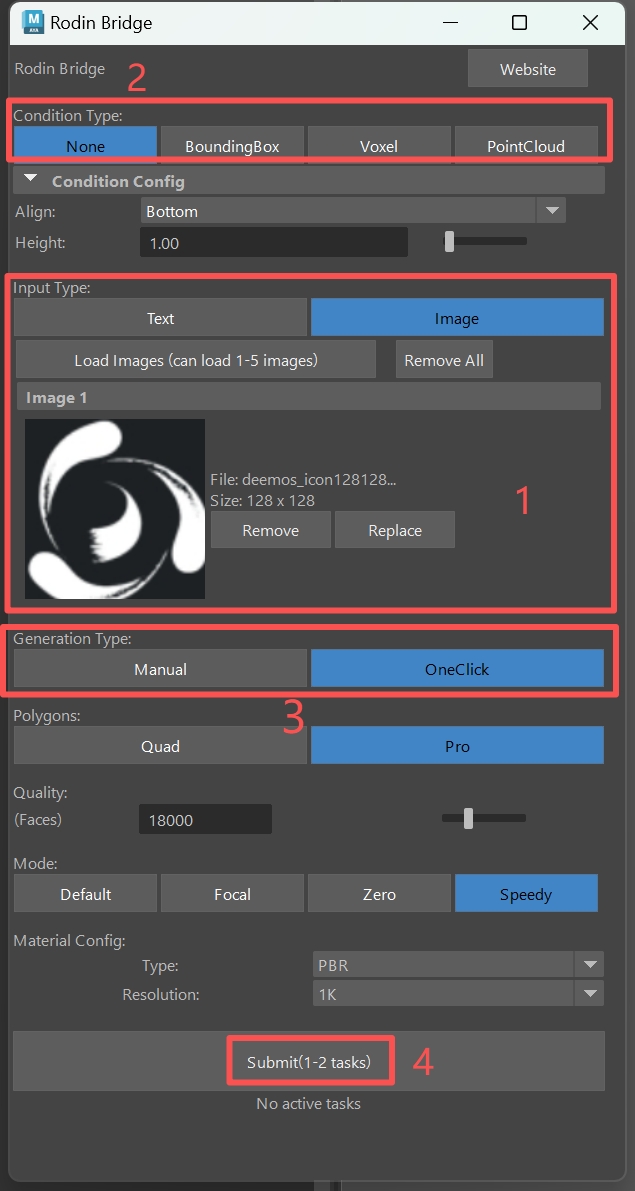
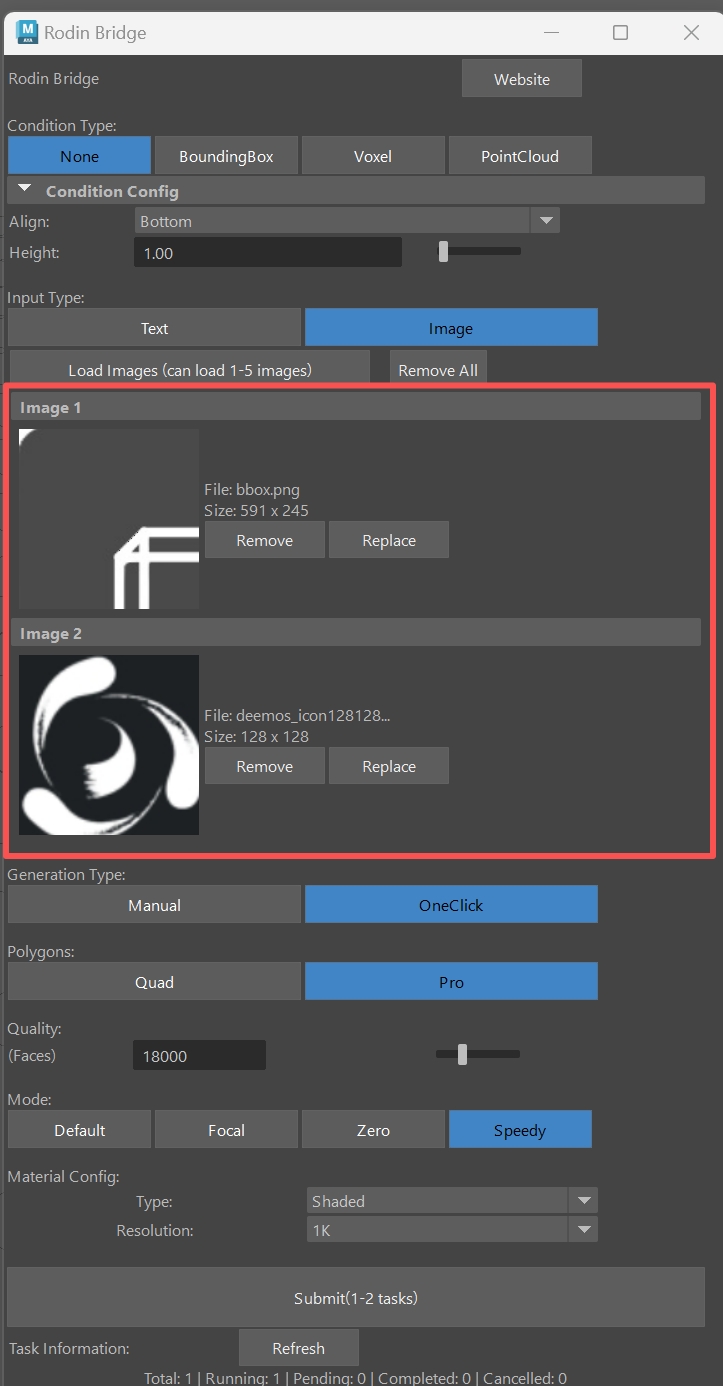
1. Click 'replace' to add/replace image you want to generate the 3D asset with.
2. Choose 'None' in ControlNet options and choose 'One Click' for the fastest generation experience. The rest of the settings are identical to those on Rodin webpage.
3. Once they are adjusted, click 'Submit' to begin the process.
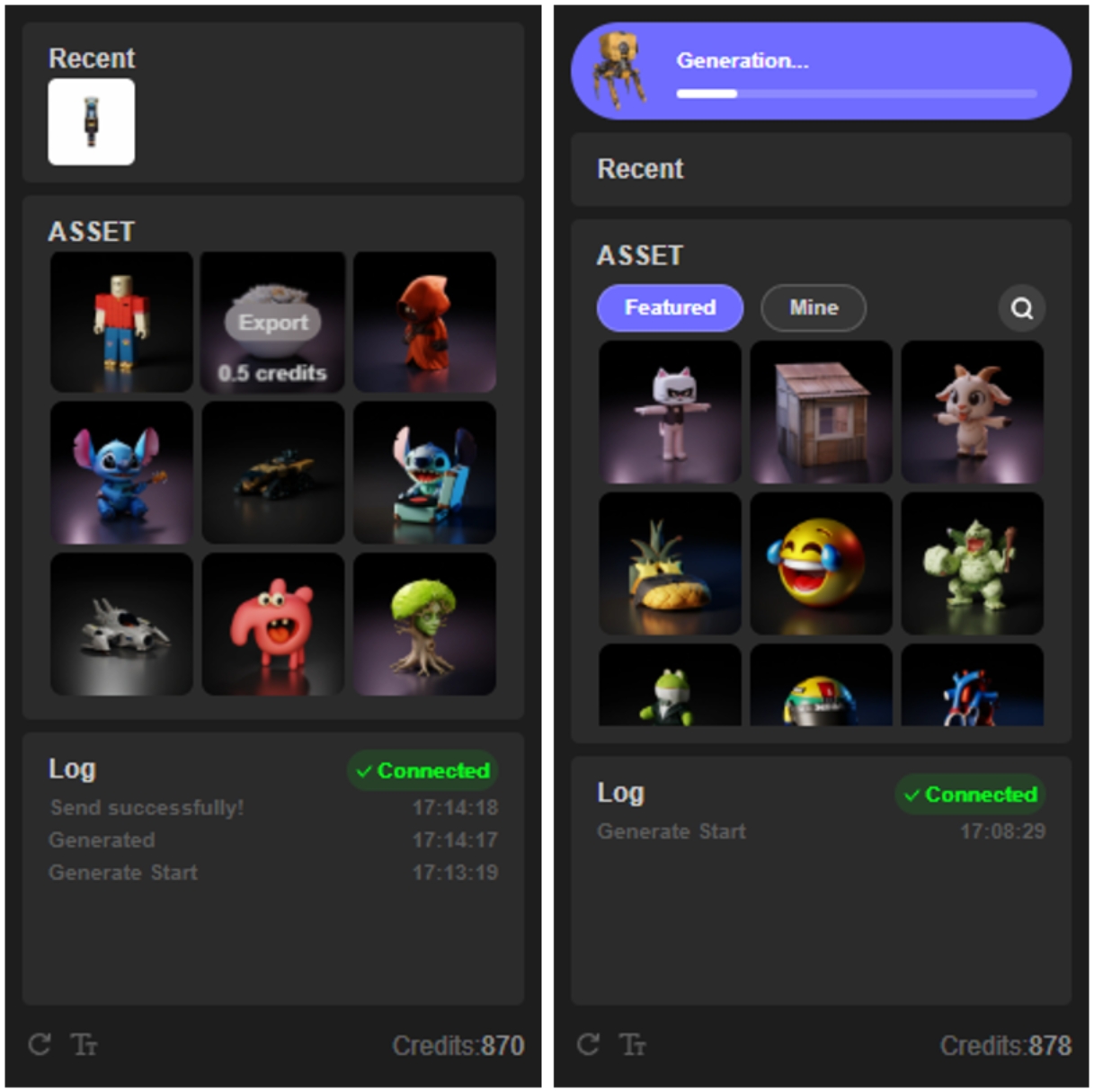
The Rodin webpage will automatically appear if not already open. On the Rodin webpage, activate the floating window using the toggle switch.
You can monitor the generation process in the floating window. The generated asset will be automatically imported into Maya scene.
You can also import featured assets or generated assets by hovering on the target asset and press the emerged 'Export' button.
### Advanced Functions
**ControlNet:**
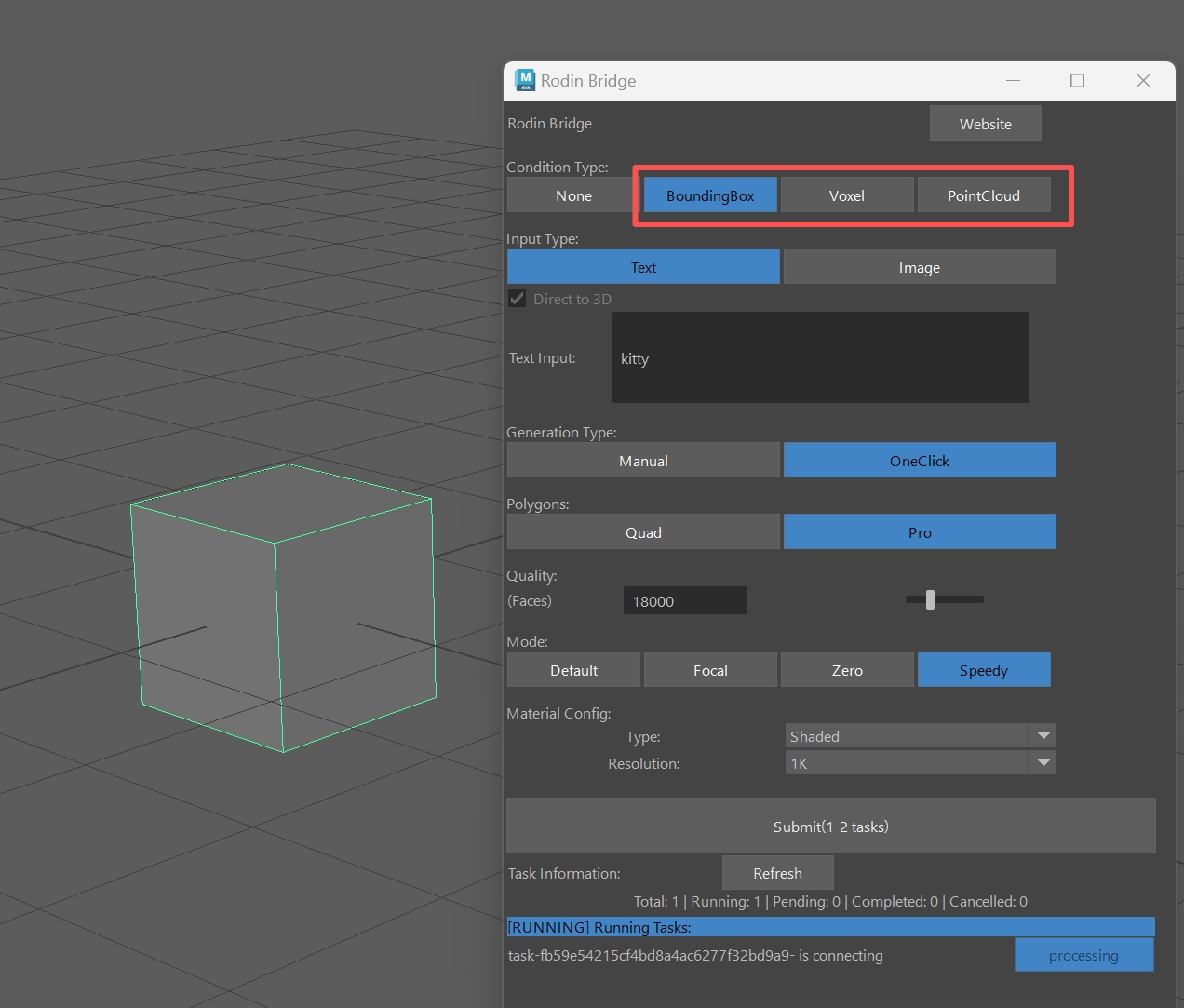
To enable ControlNet, select an object in scene and choose your desired ControlNet mode. You can then adjust ControlNet settings as needed (identical to Rodin webpage settings).
**Multiview Mode:**
You can use 'Load Image' to add more images as the input for generation. Rodin will automatically process them as the input for multi-view generation.
**Generation Mode:**
You can choose between One Click mode and Manual mode.
**One Click**: Process runs without step-by-step guidance.
**Manual**: Requires step-by-step operation in the floating window. The process is identical to that on Rodin webpage.